Connect your agent to Builder Studio
Connect an MCP-compatible agent to read and edit your Builder Studio canvases, or use the CLI from your terminal.

Builder Studio exposes canvas tools through the Model Context Protocol (MCP). A connected agent can discover your canvases, inspect their layers, edit designs and place media within the access you grant. The changes appear on the same canvas you open in Builder Studio.
Choose a connection
- ChatGPT and Claude: add Builder Studio as a remote MCP connector, sign in and approve its permissions. Your client controls where connector tools appear.
- Claude Code, Codex and Cursor: install the remote MCP server using the client-specific setup, then complete browser sign-in. For terminal commands and scripts, use the Builder Studio CLI with a scoped workspace access key.
- Grok: use a custom MCP connector. Builder Studio is not listed in the Grok Bot marketplace.
Use Connect your agent for current client-specific commands and connector settings. The Claude Code guide gives a worked setup example.
What the connection can do
- Read: list accessible canvases and inspect the layers or document you want to work on.
- Edit: change canvas elements, create editable layouts from HTML and CSS, and place media when the connection has the required write permissions.
MCP is the connection protocol; it does not make every client behave identically. The client chooses how to present tools and ask for confirmation. Builder Studio checks access when each tool runs. See the MCP server overview for the product boundary.
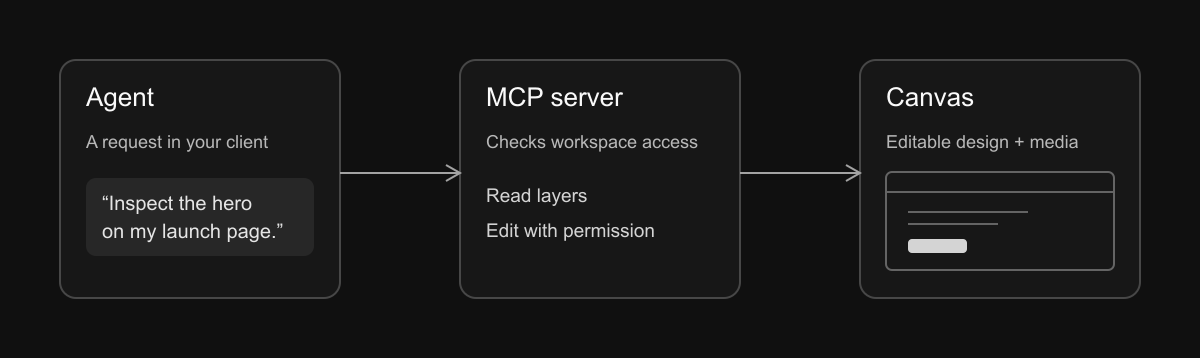
Start with a read, then make one edit
After connecting, ask your agent to list the canvases it can access. Choose one and ask it to inspect a named section before making a change. For example:
“Find the canvas called ‘Launch page’ and inspect its hero. Tell me which heading and button it contains before changing anything.”
Once the agent identifies the right section, ask for one specific change and review it on the canvas. If a tool is unavailable or access is denied, check the selected workspace and the permissions on the connection.
Keep access matched to the task
OAuth lets you sign in and approve access in your browser. Workspace access keys are created in workspace settings and belong to that workspace. Start with read access when you only need inspection; grant write access when the task requires it.
Tool profiles can reduce the tools shown to an agent, but they do not grant or replace permissions. A narrower tool list is a convenience; the connection’s scopes remain the access boundary.