Diagrams your agent can draw and you can finish
Shapes and arrows on the same canvas as the pages they plan, so the flow and the site stay in one place.
Draw it yourself
Shapes
Rectangle, ellipse, triangle, line, arrow, polygon and star, from the toolbar. A closed shape takes a label.
Arrows that stay attached
Draw an arrow from one shape to another and it follows whichever one you move. Switch it between straight, curved and elbow at any time.
Next box in one click
Select a box and click the handle on any side: a matching box lands beside it, joined by an arrow.
Flow shapes
Insert › Diagrams adds process, decision, terminator and document boxes, plus notes, callouts and annotation marks.
Pen-and-paper look
Turn up Sketch in a shape’s stroke settings for a hand-drawn outline.
Comments
Pin comments on the board, mention teammates and resolve threads.
Ask your agent
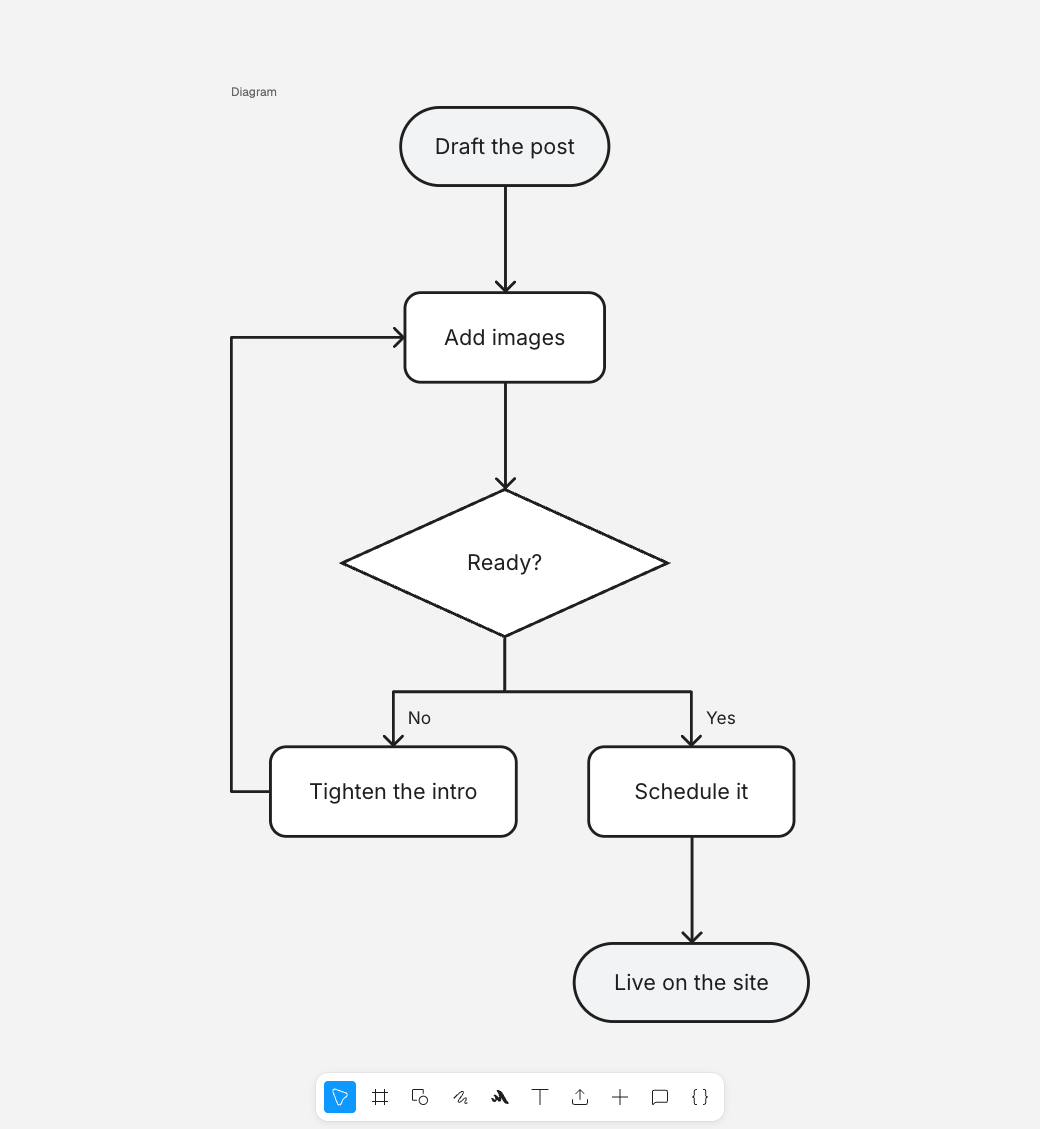
Coding agents such as Claude Code, Codex and Cursor connect to Builder Studio over MCP, the protocol agents use to call another product’s tools. One call draws a whole flowchart: the boxes, the arrows and their labels, all of it or none of it.
- Each arrow is bound to the boxes it joins, so the diagram holds together when you move things.
- Open the same canvas and you watch each box and arrow arrive.
- The diagram tool is experimental.
The call behind the flowchart above
The steps are written in Mermaid, a text format agents already use for flowcharts, and sent to canvas_create_diagram. The tool places the boxes and routes the arrows around them.
{
  canvasId: '<canvas id>',
  source: `flowchart TD
draft([Draft the post]) --> images[Add images] --> review{Ready?}
review -->|No| notes[Tighten the intro] --> images
review -->|Yes| schedule[Schedule it] --> live([Live on the site])`,
}
How to make a flowchart
Open a canvas
Sign up for free and start a new canvas.
Add the steps
Pick a shape from the toolbar, or open Insert › Diagrams for process, decision and terminator boxes. Press Enter to type its label.
Connect them
Click the handle on a box’s side to add the next step, already joined. Drag the handle onto another box to join those two instead.
Keep it moving
Pin comments where the flow needs a decision, or ask your agent to add the next steps.
Questions
Is the diagram maker free?
Yes. Shapes, arrows, the diagram library and comments are on every plan, including Free.
Can an AI agent create a diagram?
Yes. An agent connected to Builder Studio over MCP, such as Claude Code, Codex or Cursor, can build a flowchart with its boxes, arrows and labels in one call. The tool is experimental.
Can I edit a diagram the agent made?
Yes. The agent draws ordinary shapes and arrows on your canvas, so you move, restyle and relabel them like anything you drew yourself.
Can my agent send Mermaid?
Yes. canvas_create_diagram reads Mermaid flowchart text, top to bottom or left to right: steps, start and end pills, decisions and labelled links. A shape or link the canvas has no match for, such as a database or a subgraph, is drawn as the closest box or arrow, and the agent is told which lines changed.